
UniFlip Quickguides
Generally, a file of 5MB containing 30 pages takes approximately 5 minutes. You can track the status in the Management Module. ?Processing? means that the system is still uploading the document; ?Trial? means that you can make changes; ?Online? means that the publication is online and active. Remember to update your browser window so you can see when the publication is ready. The status will change from “Processing” to trial or free.
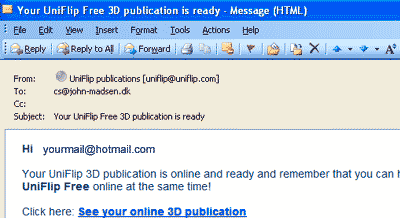
After your file has uploaded, choose the language and background color. Check the box to agree to UniFlip?s terms; then click Create publication. The speed of the conversion depends on the size of the file, your Internet connection, and how many users are on the system at one time.. Once your publication has been created, it will appear under the My 3D Publications tab. Click on the link; your publication will open in a new window.
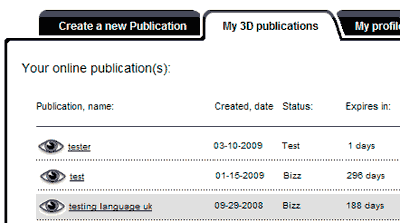
To delete a publication, click the Edit link under the My 3D Publications tab; then select delete publication from the drop-down menu. Note: The system can support three different online publications at a time. If you already have three active publications with UniFlip FREE, delete an existing publication before uploading a new file.
To create a new publication, click on the Create 3D Publication tab. Assign a name to your publication in the box provided! Browse your computer to choose and upload your file in one of the following formats: MS Word, Excel, PowerPoint (2003-2007), or Adobe PDF. You can minimize your browser window and work in other applications while your files are uploading.
The e-mail address will be your username for logging in to UniFlip management module.com. We ask you to type it twice to ensure that we have the correct address. The email address must be valid or the system will delete the account, if the welcome message can’t be delivered. We will never share your personal information with third parties.
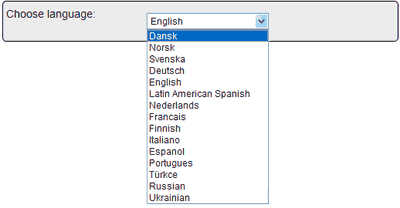
To make changes to your publication, click the Edit link that appears to the right of your publication. Choose from 23 different languages for the navigation text and make your online publication easier to navigate for your foreign readers. Click “My publications” tab – click “Edit” a and choose a new language and click “Save” and the Flash publication will be updated.
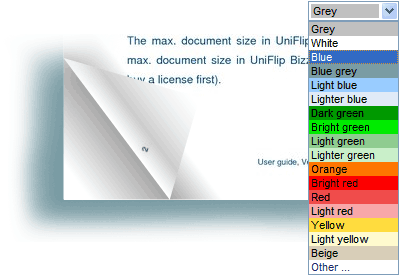
To make changes to your publication, click the Edit link that appears to the right of your publication. Change the background color and give your online Flip Flash publication a new look. Click on the “My publications” tab – click “Edit” next to the publication and select a new color. Final click “Save” and the Flash publication updates automatically.
Upload din PDF og forvandl til bladvende sider