
UniFlip Quickguides
Generally, a file of 5MB containing 30 pages takes approximately 5 minutes. You can track the status in the Management Module. ?Processing? means that the system is still uploading the document; ?Trial? means that you can make changes; ?Online? means that the publication is online and active. Remember to update your browser window so you can see when the publication is ready. The status will change from “Processing” to trial or free.
Readers can click on an advertisement or internal link and will be forwarded to an external web page or to an internal link inside the Flash publication. Insert links in the form of words, photos, email addresses or entire sections, and let your reader easily navigate and find information without leaving the online publication. Read more and see all the advantages UniLink? provides to you and your business!

Portable Document Format (PDF) documents capture and save a document exactly as it appears in its original program. A PDF document is beneficial because it cannot be altered after it is created, unless otherwise allowed by the document?s original creator.

Without a license, it is not possible to make changes to the welcome text.
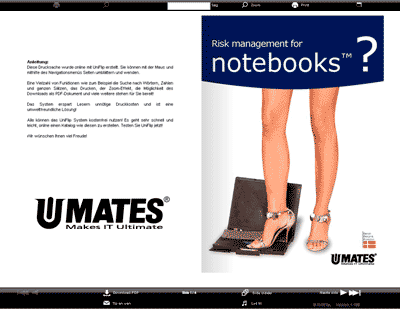
The welcome text will be a standard disclaimer that is inserted automatically by the system.
Make sure that the paper format in the document is saved as ?Letter or A4 Portrait? for optimal viewing. The system will NOT make any changes to your settings or paper format.

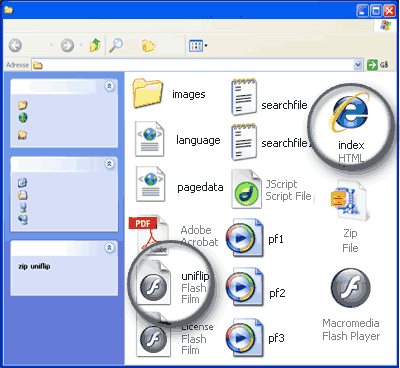
To publish from your server you must link to one of the following two files that are included in the downloaded folder: index.html – Running from Web servers or CMS hosting uniflip.swf – Embed in a iFrame, social media blogs and more FTP upload the folder to your Web server / hosting provider and insert a Web link to the appropriate file at your Web page. There are no Web server service restrictions, as you do not need to install any software. Consult your Webmaster to get help, if you do not have experience in uploading files via FTP.

Make sure to upload only one file with ALL the pages listed in the correct order. If you upload only one file with only one page, you will not get a flipping publication.
Printed publications require paper, toner, ink, distribution – all of which have a negative impact on the environment in the long run. I’t important to make use of new ways to reduce the polution and decrease our impact on the environment, becoming a rolemodel for sustainable business in the future. Take advantage of this new technology to reduce your carbon footprint and to protect the environment.

You can test and upload as much as you like, and you can have 3 online publications online at the same time. Just delete and replace with your new upload It’s free for everyone to make use of the system for testing at any time – also after the trial but with some limitations.
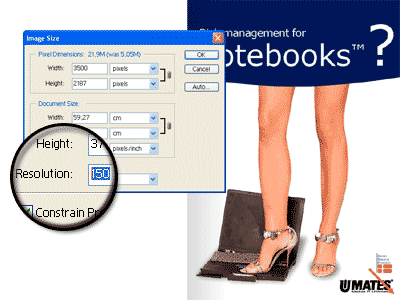
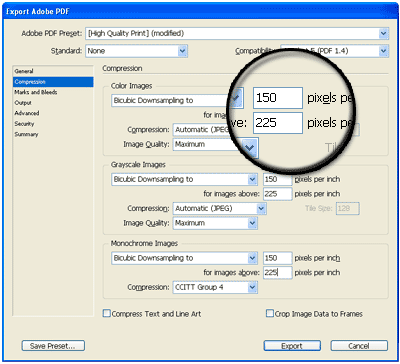
Upload images save in RGB and optimize the PDF before saving in your PDF application for the best result. We recommend saving the PDF at a maximum of 150 dpi When you place an image in your document, ensure that they are not multi-layered, or they will not show up correctly, however if you run “PDF Optimizer” in your PDF application, it will not be a problem.
It’s fast and easy to send your new online digital publication by e-mail to business partners, customers, friends or family. Simply copy your publication’s internet address (URL) and insert the URL as a link in your e-mail. You can rename your URL link through your e-mail provider or application. For more information on this process, consult your email provider’s instructions.
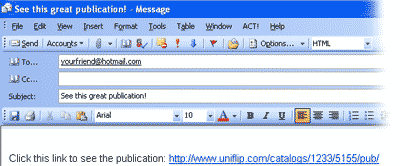
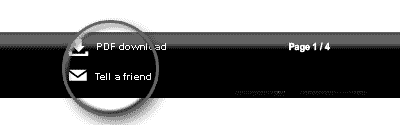
Your reader can easily send a link in an e-mail – including your information – to a colleague or a friend, it’s easy inside your Flash magazine. Your online document will be distributed faster than ever, and you will avoid the costs of printing and postage.
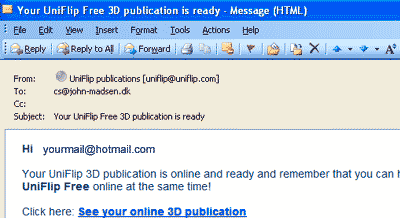
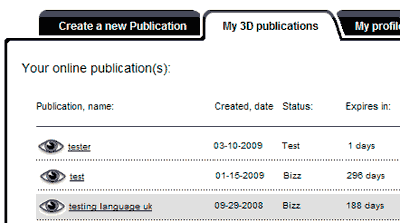
After your file has uploaded, choose the language and background color. Check the box to agree to UniFlip?s terms; then click Create publication. The speed of the conversion depends on the size of the file, your Internet connection, and how many users are on the system at one time.. Once your publication has been created, it will appear under the My 3D Publications tab. Click on the link; your publication will open in a new window.
Traditional printed publications require spending a lot of money on printing and postage. Publishing a printed publication is a slow process, and it’s difficult to see direct results. With UniLink?, you’ll avoid these costs and can invest to increase your email database for direct marketing. Online publications offer a lot of benifits for your company and also improve the readers experiences.
IMPORTANT: All of the pages in the document must be the same size. If the cover of your online publication looks correct but the inside pages are not clear, make sure that all of your pages are the same size and are saved as single pages.
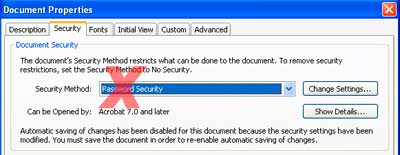
If your PDF is saved with security and requires a password in order to gain access it will be refused by our system and can’t be uploaded! Remove the security settings before uploading – you can always add them afterwards.
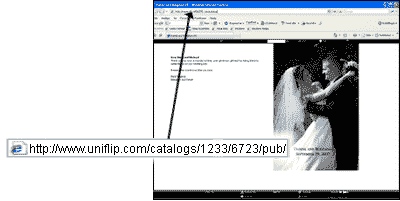
As soon as you have created your publication, it is safely hosted on the UniFlip server. Simply cut and paste the URL of your publication into an e-mail, and send it to your designated recipients. Or link from an animated banner at your homepage.
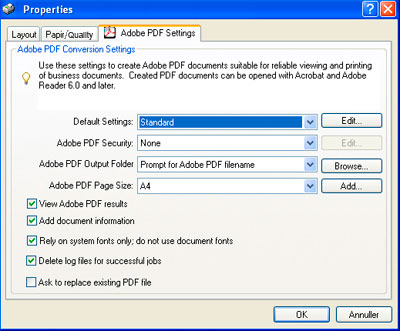
If your PDF couldn’t be converted or it looks wrong you can try to save in your PDF application again and make a new upload to UniFlip. When saving again use the settings shown below: When saving your PDF with these settings Adobe Acrobat cleans up the document and removes the worst errors in the PDF.
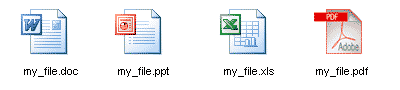
UniFlip automatically converts MS Office 2003 and 2007 files (incl., Word, PowerPoint and Excel) to PDF without any software downloads.
Your viewer is able to download and print all pages of your publication.
The PDF download function can be removed and disabled in your management module (only valid with license).
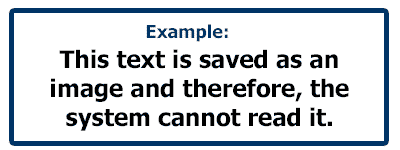
When you insert text in an images, the search function will not work properly, and will not be able to find the word or sentence. The search feature can only search for words in clear text, and NOT inside an image.
Choose from 12 different languages when you create your online catalog. Your reader will see all help messages in his or her native language. This feature makes it even easier for everyone to enjoy and use your online publication.
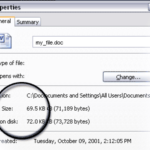
The maximum file size with UniFlip’s licensed version is 125MB; while the maximum file size with UniFlip’s TRIAL version is 5MB. When you purchase a license, even if you have not yet activated it, you can upload up to 125MB/300 pages. We place limits on the file size in order to avoid having Web browser crash due to limitation in speed internet connections and lack of memory with your viewers computers – Please read the section in order to Web optimize your PDF.
If you have purchased a license, you are allowed a maximum of 300 pages per file. 100 pages per file are allowed with UniFlip’s TRIAL version. If you need more than 300 pages, we recommend that you split the publication into different sections or/and products. Breaking the document into more readable segments will allow for a faster download time and will avoid your readers Web browser to crash due to the speed of internet connection and other computer limitations.
UniLink? is simple and can be used by anyone without any special knowledge of new technology. Each step is illustrated clearly and makes it very easy and fast to insert and correct links. You will be able to make use of UniLink? during the entire period of license for the publication

Add a link to headlines on your cover page, allowing readers to be taken directly to the online story. You can also insert links into each topic in the index to forward the reader directly to the relevant page inside the publication. With UniLink?, it’s a lot easier for your reader to navigate around your publication.
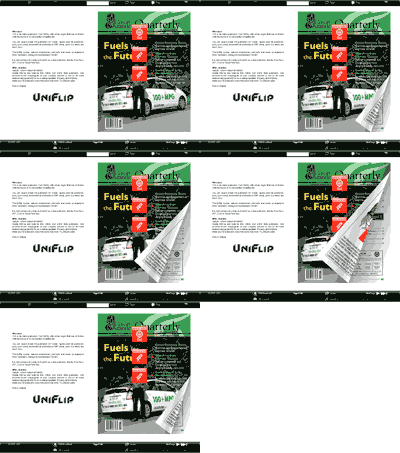
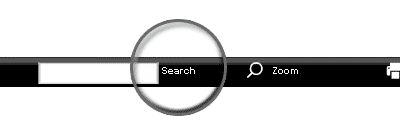
It’s easy for your reader to search for sentences, words or numbers within the online Flash publication, meaning that locating specific information is a snap. The search option is important if your publication contains a lot of pages, as it means that finding informations is even faster and easier for your readers.
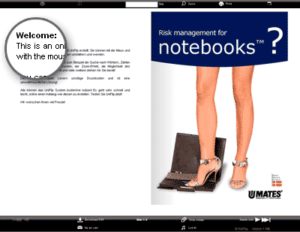
Below the welcome message you will be able to insert your company logo or a photo.
Insert a link to your website from the logo or picture. You can change the logo and picture at any time from your UniFlip management module.
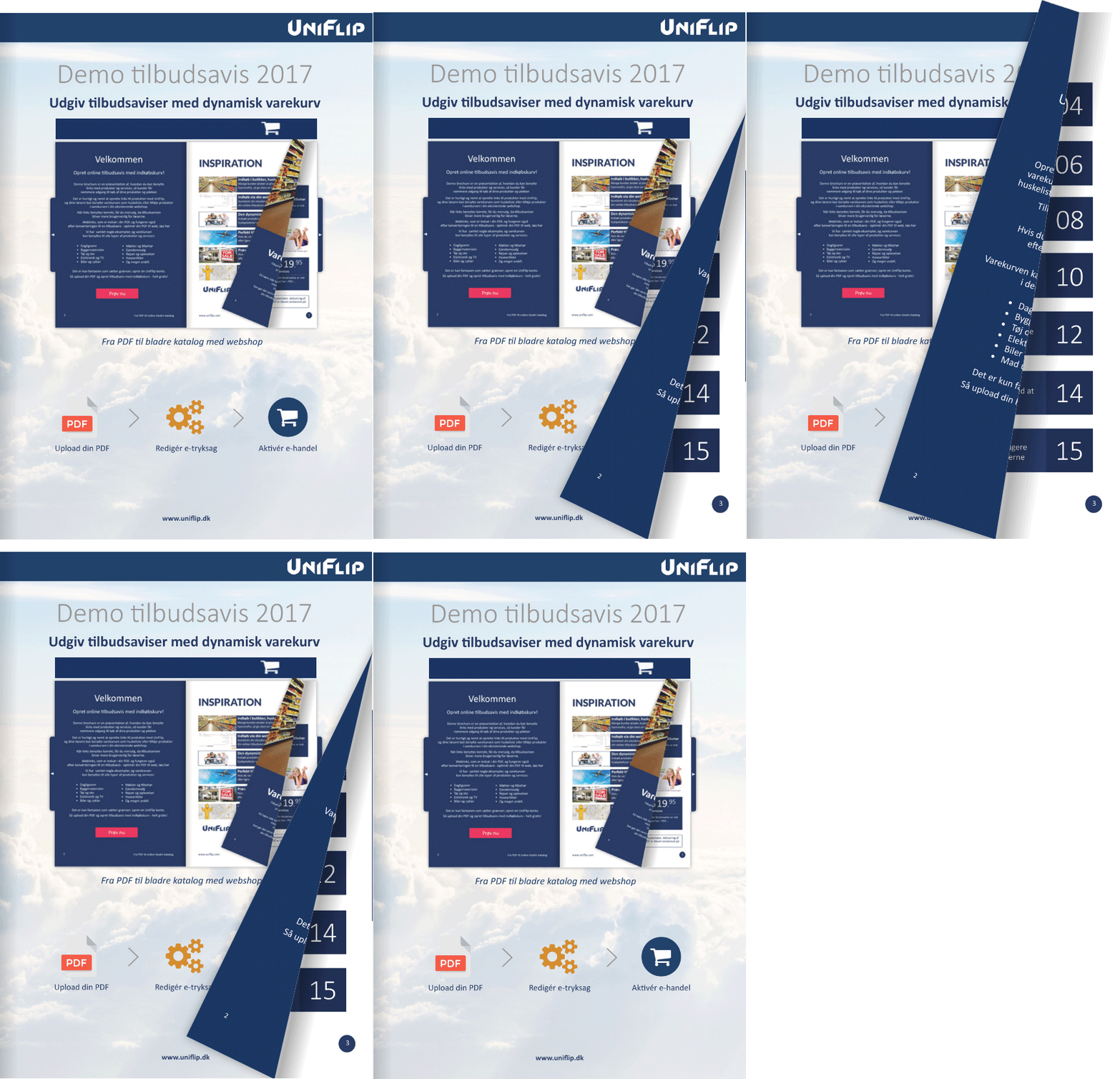
When it’s easy for your reader to place an order at your online store, you’ll receive more orders. Readers can place an order for your product or service at your existing online store without having to leave your online publication. In this way, the reader can continue shopping and even buy more products or services..
All your readers need is a computer and internet connection to visit you and your advertiser’s homepages, purchase a product from your online store when reading an online publication. UniLink? makes it easy for your readers. They can obtain more information with just one click without having to leave your online publication. UniLink? enhances your readers experience and improves their perception of your offer.
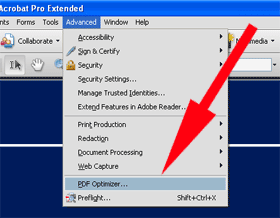
Always run “PDF optimizer…” to decrease and optimize your PDF file to get the best result. This example below is from Adobe Acrobat Pro but will be available in the most popular PDF applications Check the instructions to find the feature before uploading and get your file converted to an online publication.
You don’t need to save your document to PDF format before the upload; however, it can improve the size of the file without reducing the quality.
Clicking on the print icon in the navigation bar will print a single page.
When you have licensed the UniFlip publication, the administrator can disable the printing function so that printing physical paper pages can be controlled by management.
To read PDF documents, you must have Adobe Reader installed on your computer; this program can be downloaded for free. Click here to get it now! To convert documents to the PDF format, you must have the Adobe Professional software program. Visit www.adobe.com to purchase the software. Visit www.adobe.com to purchase the software.
To convert for example a Word, Excel, Powerpoint document to PDF format requires a software which Adobe offers against payment. Note: Many companies already use software that converts documents to PDF. Talk to your administrator to learn if your company has PDF conversion software. CutePDF is a free PDF conversion program and can be downloaded from www.cutepdf.com www.cutepdf.com
When using printed publications, it’s difficult to know how your informations are received, as few readers will take the time to respond by mail. In a UniFlip online publication, your reader just needs to click on the email address to get in touch with you – it’s easy! You and your readers benifit from the userfriendly emaillinks, with which one can send an email while reading the online publication.
When documents are published in UniFlip, your information is presented through a reader-controlled, interactive experience.
This will enhance the reader’s comprehension and attention.
After extracting the zip file, you use the following files to publish: index.html ? for web and offline (PC, MAC, DVD, CD, USB) uniflip.swf ? Shockwave Flash (iFrame)
UniLink? makes it easy to get informations from other pages on the Internet with just one click of the mouse. For example, you can link to product informations, your home page, your advertiser’s web site – and your reader will be taken there without having to close your online catalog There are a lot of benifits for you and your readers in using online publications!
If the fonts are to be displayed correct in your online 3D publication, it is important to embed fonts when saving to PDF. Therefore, remember to set the PDF settings (PDF optimizer options) before uploading your file.
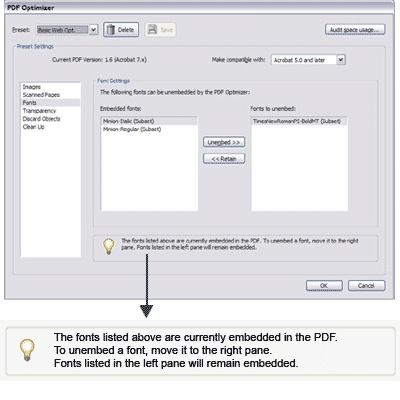
To display the fonts correctly from a PDF document, they must be embedded in your file. Therefore it is important to embed fonts when saving in PDF format before uploading your file.
If you want to control the size of the publication or just want to incorporate it into an existing Web template, you can use an iFrame: iFrame (Inline Frame) adds a window inside your current Web template. Simply link your publication to the iFrame within your Web document, as we show below. The system will automatically prepare the iFrame code at the “Publish and Share” page accessible through your personal UniFlip account.
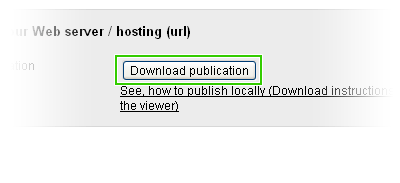
After you have purchased and assigned a license to a specific publication, you can download your files and publish from your Web server or CMS hosting provider. Click on the tab “Publish and Share” > Click “Download publication” > Save the folder on your computer > Extract the zip file before uploading to your Web server / CMS hosting provider. Remember: Once you have downloaded the files, they are yours free and clear. You can publish and distribute unlimited!
Customize the text and tool tips in the navigation menu or remove it completely. Open the language.xml file in a text editor and change the text. It’s important that you have some experience editing xml and that you make changes to the text carefully. There is a limit to the text length and it can’t be changed. Please note that customization of the language file is not supported by UniFlip, and we suggest that you make a back-up of the language.xml file before making any changes. Do not make ANY changes to other files, as you will loose the license.
To delete a publication, click the Edit link under the My 3D Publications tab; then select delete publication from the drop-down menu. Note: The system can support three different online publications at a time. If you already have three active publications with UniFlip FREE, delete an existing publication before uploading a new file.
Customize the personal welcome message in the online flash flipbook on the the left of the first page.
Address your readers personally and customize the message according to the season and make changes to the content when it’s needed..
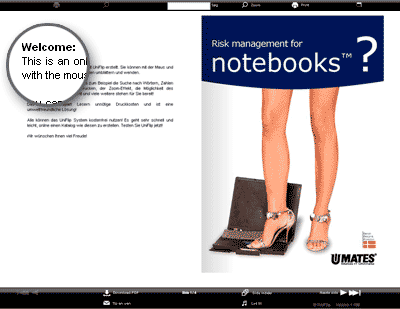
Release date: October, 2010 Our approved partners can change the style of icons when the files are downloaded. More information to come soon…
Customize the text and tool tips in the navigation menu or remove it completely. Open the language.xml file in a text editor and change the text. It’s important that you have some experience editing xml and that you make changes to the text carefully. There is a limit to the text length and it can’t be changed. Please note that customization of the language file is not supported by UniFlip, and we suggest that you make a back-up of the language.xml file before making any changes. Do not make ANY changes to other files, as you will loose the license.
To create a new publication, click on the Create 3D Publication tab. Assign a name to your publication in the box provided! Browse your computer to choose and upload your file in one of the following formats: MS Word, Excel, PowerPoint (2003-2007), or Adobe PDF. You can minimize your browser window and work in other applications while your files are uploading.
The e-mail address will be your username for logging in to UniFlip management module.com. We ask you to type it twice to ensure that we have the correct address. The email address must be valid or the system will delete the account, if the welcome message can’t be delivered. We will never share your personal information with third parties.
You don’t need to convert your PDF before the upload. However, it can improve the size of your file without reducing the quality. The UniFlip system converts your Word, PowerPoint or Excel file to PDF – without the need to download any software.
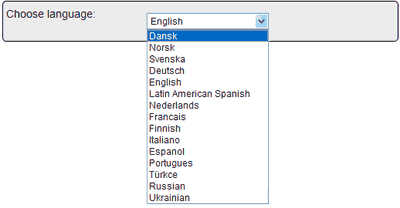
To make changes to your publication, click the Edit link that appears to the right of your publication. Choose from 23 different languages for the navigation text and make your online publication easier to navigate for your foreign readers. Click “My publications” tab – click “Edit” a and choose a new language and click “Save” and the Flash publication will be updated.
At any time you can make changes to the background. color of the online publication. By choosing your company’s signature color or a seasonal one, enhance the professional presentation of your new online 3D publication.
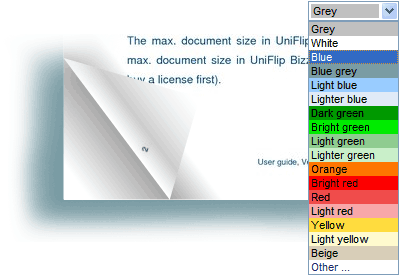
To make changes to your publication, click the Edit link that appears to the right of your publication. Change the background color and give your online Flip Flash publication a new look. Click on the “My publications” tab – click “Edit” next to the publication and select a new color. Final click “Save” and the Flash publication updates automatically.
Increase profit from advertisers and sponsors as they will get more visits from your online publication. Receive more orders, since it’s easy for your readers to place an order directly at your online store. We recommend that you download the entire publication in order to embed and publish it from your own web server. This allows you to make use of existing statistics tools and keep track on the results.

By saving in a resolution at 150dpi and the pictures in RGB color you will get the result in order to limit the file size. Do as many test uploads as you want to find the best solution for your file(s).
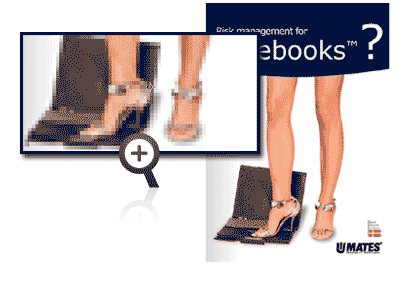
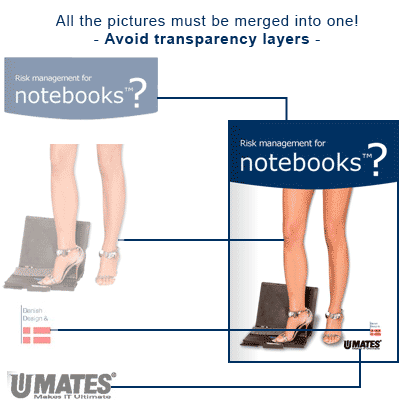
When you place an image in your document it is important that is consists of only one image/layer. If you have mulitple images with transparency layers, the final file will show errors when uploaded or the system will not finalize. If you have a lot of transparency layers in your image file, you have to merge them into one image before saving and uploading your PDF.
Always upload an even number of pages (e.g. 8, 12, 20, 50) to avoid having an empty page at the end of the online publication.
You can Autorun the .exe file with an application. The program enables the CD with your digital publication to start automatically when inserted in a computer’s CD/DVD device. Click on this link and follow the five simple steps to enable Autorun on your CD/DVD/USB: http://www.ezau.com/latest/articles/autorun.shtml Please note: AutorunPro is a FREE program. UniFlip does NOT provide support for this feature
The UniFlip converter can regonize and automatic insert links created in your PDF application – ONLY IF THE LINKS ARE CREATED ACCORDING TO THE INSTRUCTIONS IN YOUR PDF APPLICATION! The UniLink auto import save you a lot of work and time and you can make use the instruction below from Adobe Acrobat. This feature will insert all “visible” links automatic, and will be be active after the conversion in you online publication.
The Internet is more fun with sound and audio, and your readers will be more interested when they hear the sound of flipping pages. You readers can choose to disable the audio option.
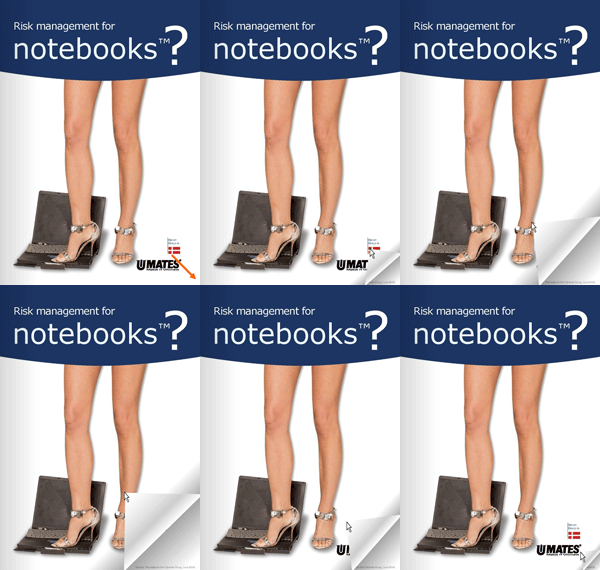
All pages in the document must be the same size to make the all pages identical inside the digital publication. Once converted to flip-page format, if the cover of your digital publication looks correct but the inside pages are not clear, double check that all of your pages are in the same size and saved as single pages.
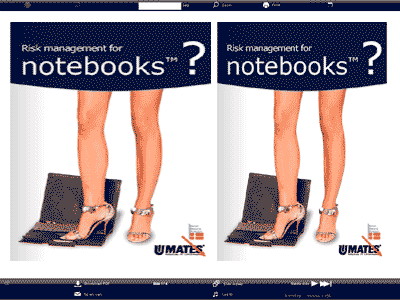
Upload din PDF og forvandl til bladvende sider